NETGEAR Nighthawk Router Login
First thing to clear up: Nighthawk isn't a separate company. It's NETGEAR's performance line — their flagship routers designed for gaming, 4K streaming, and large homes. The reason this matters is that the login process is identical to every other NETGEAR router: same address, same default credentials, same admin interface. If you've set up one NETGEAR router, you've set up a Nighthawk.
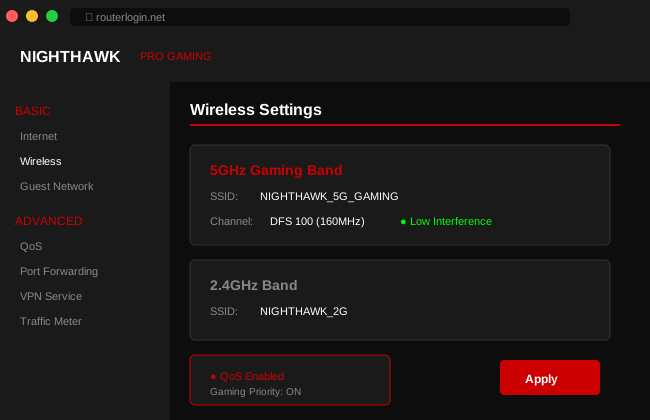
Web Login vs. Nighthawk App
NETGEAR gives you two ways to manage a Nighthawk, and they're not equivalent:
The Nighthawk app (iOS/Android) is where NETGEAR wants you to live. It handles initial setup, shows connected devices, runs speed tests, manages parental controls (with the paid NETGEAR Armor subscription), and lets you manage things remotely. It's polished and easy to use, but it hides many advanced settings.
The web interface at routerlogin.net is where the power is. Port forwarding, DNS settings, VLAN configuration, firmware flashing, QoS rules, VPN setup, static routes, dynamic DNS — all the stuff enthusiasts care about lives here. If you're setting up a Nighthawk for gaming or running a home server, you'll spend most of your time in the web interface.
My recommendation: use the app for initial setup (it's faster and detects your internet type automatically), then switch to the web interface for anything beyond basic WiFi changes.
Default Credentials
Every Nighthawk ships with the same admin credentials:
| Field | Value |
|---|---|
| URL | routerlogin.net or 192.168.1.1 |
| Username | admin (lowercase, always) |
| Password | password (yes, literally the word "password") |
Unlike ASUS routers that force a password change on first boot, NETGEAR only suggests it. Plenty of people click past the prompt and leave the default. Change it. Seriously — admin/password is the first thing anyone tries.
Nighthawk Models Worth Knowing
The Nighthawk lineup spans from mid-range to overkill. Here's the honest breakdown:
RAX50 (AX5400) — the sweet spot for most people. Dual-band WiFi 6, solid coverage for a typical house, and enough processing power for 30+ devices. Not flashy, just reliable.
RAX80 (AX6000) — the one with the giant wing-shaped antennas. Faster, better range, 160 MHz channel support for compatible devices. Good for larger homes or if you have a lot of WiFi 6 devices.
RAXE500 (AXE11000) — tri-band WiFi 6E. If you have WiFi 6E devices and want the 6 GHz band for dedicated high-speed connections, this is NETGEAR's answer. It's expensive, and most people don't need 6E yet.
RS700S (WiFi 7) — the newest flagship. WiFi 7, tri-band, 19 Gbps aggregate speeds (theoretical). Future-proof if you're buying for the next 5+ years, but WiFi 7 devices are still rare in 2026.
R7000 (AC1900) — the legendary workhorse. WiFi 5, but it's been running flawlessly in millions of homes since 2013. If you bought this one years ago and it still works, there's no urgent reason to replace it unless you need WiFi 6 speeds.
Setting Up for Gaming
Gaming is what Nighthawks are marketed for, and the firmware has some genuinely useful features for it:
QoS (Quality of Service): Found under Advanced → Setup → QoS in the web interface. Enable it and add your gaming PC or console as a high-priority device. This tells the router to prioritize your gaming traffic over, say, someone streaming Netflix on another device. The difference is noticeable when your connection is congested.
Port forwarding for specific games: If you're getting strict NAT warnings in games like Call of Duty or can't host matches, you need to forward the game's ports. Go to Advanced → Advanced Setup → Port Forwarding, add a new service with the ports your game uses, and point it to your console's local IP. Set that console to a static IP first (under LAN Setup → Address Reservation) so the forwarding doesn't break when the IP changes.
Geo Filter (NETGEAR Armor subscribers): Lets you limit matchmaking to nearby servers, reducing ping. Not essential, but nice if your ISP has good peering.
The NETGEAR Armor Question
Every Nighthawk comes with a 30-day trial of NETGEAR Armor, a security and parental control subscription powered by Bitdefender. After that, it's about $100/year. Whether it's worth it depends:
Armor gives you network-level antimalware (protects IoT devices that can't run their own antivirus), URL filtering, and device vulnerability scanning. The parental controls are also solid — website blocking by category, usage schedules, and pause by profile.
The catch: ASUS includes equivalent features for free via AiProtection. If you're deciding between brands and security features matter to you, that's a significant cost difference over the life of the router.
Troubleshooting Login Issues
routerlogin.net shows an error page. This hostname is intercepted by the router's built-in DNS. If you're using a custom DNS (like Google's 8.8.8.8 or Cloudflare's 1.1.1.1) on your computer, or running Pi-hole, the interception doesn't work. Use 192.168.1.1 directly.
"admin / password" is rejected. Someone changed it. Check the sticker on the bottom of the router — some newer Nighthawks have a unique default password printed there instead of "password". If that doesn't work either, factory reset: use a paperclip in the Reset pinhole on the back, hold 10 seconds while powered on.
You see the Nighthawk app setup screen in your browser. This happens on brand-new routers that haven't been configured yet. The router is redirecting all web traffic to its setup wizard. Just follow it — or download the Nighthawk app if you prefer.
routerlogin.net redirects to routerlogin.com (NETGEAR's website). You're not connected to the Nighthawk's network — you're on a different network that's hitting the actual internet. Connect to the Nighthawk's WiFi or plug in via Ethernet.