localhost/phpmyadmin — Access, Login & Setup Guide
phpMyAdmin is a free, browser-based tool for managing MySQL and MariaDB databases. Instead of typing SQL commands into a terminal, you get a visual interface — click to create databases, browse tables, run queries, import backups, and manage users. It's installed automatically with XAMPP, WAMP, MAMP, and Laragon, so if you're running any of those stacks, phpMyAdmin is already on your machine at localhost/phpmyadmin.
Default Login Credentials by Stack
The login screen asks for a MySQL username and password — not a phpMyAdmin-specific account. Your MySQL user credentials depend on which local stack you installed:
| Stack | Username | Password | URL |
|---|---|---|---|
| XAMPP (Windows / Mac / Linux) | root | blank — leave empty | localhost/phpmyadmin |
| WAMP (Windows) | root | blank — leave empty | localhost/phpmyadmin |
| MAMP (Mac / Windows) | root | root | localhost:8888/phpmyadmin |
| Laragon (Windows) | root | blank — leave empty | localhost/phpmyadmin |
| Ubuntu / Debian (apt install) | root | MySQL root password | localhost/phpmyadmin |
| macOS (Homebrew) | root | blank or set at install | localhost/phpmyadmin |
How to Open phpMyAdmin (Step by Step)
phpMyAdmin only works when both Apache and MySQL are running. It's a PHP script served by Apache that connects to MySQL — if either service is off, the page won't load.
- Open your stack's control panel — XAMPP Control Panel, WAMP tray icon, MAMP app, or Laragon
- Start Apache and MySQL — both must show green/running status
- Open your browser — go to http://localhost/phpmyadmin
- Enter credentials — Username:
root, Password: (blank for XAMPP/WAMP, orrootfor MAMP) - Click Go — the phpMyAdmin dashboard loads with your databases in the left sidebar
What You Can Do in phpMyAdmin
phpMyAdmin covers the full range of MySQL database management without needing to know SQL syntax:
Create and manage databases — Create new databases for projects (WordPress, Laravel, custom apps), set the character collation (always use utf8mb4_general_ci for modern projects), and delete databases when you're done.
Browse and edit table data — Click any table in the left sidebar to see its rows. You can edit cells directly, add new rows, and delete records — no SQL needed. Useful for quickly checking or patching data during development.
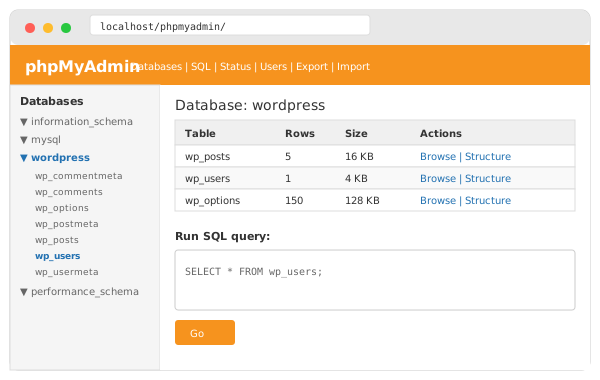
Run SQL queries — The SQL tab gives you a text editor to run any MySQL query. Select a database first, then click SQL. Results display in a sortable table below.
Import and export databases — The Import tab accepts .sql, .sql.gz, and .zip files. The Export tab lets you download a full backup or just specific tables. Use "Quick" export for simple backups, "Custom" for fine-grained control over format and compression.
Manage MySQL users and permissions — The User Accounts tab (top navigation) lists all MySQL users. You can create new users with limited database access — important when setting up apps that should only access their own database.
Reset WordPress admin passwords — Open the WordPress database, click wp_users, find the admin row, click Edit, and update the user_pass field. Set the function to MD5 and type your new password. This bypasses the WordPress login entirely.
View table structure — The Structure tab shows all columns, their data types, indexes, and foreign keys. Useful for understanding existing codebases or debugging query performance issues.
Create a New Database
Every web project needs its own database. Here's how to create one:
- Click New at the top of the left sidebar (above the existing database list)
- Type your database name — use lowercase with underscores (e.g.,
my_project) - Set collation to utf8mb4_general_ci — this supports all characters including emojis
- Click Create
Or via SQL — click SQL in the top tab bar and run:
CREATE DATABASE my_project
CHARACTER SET utf8mb4
COLLATE utf8mb4_general_ci;
Import & Export Databases
Importing a SQL File
- Select the target database from the left sidebar (create it first if it doesn't exist)
- Click the Import tab in the top navigation
- Click Choose File and select your
.sqlor.sql.gzfile - Leave format as SQL and click Go
Exporting a Database Backup
- Select the database from the left sidebar
- Click the Export tab
- Choose Quick for a simple
.sqldump, or Custom to pick specific tables or compress the output - Click Go — the file downloads to your computer
Useful SQL Queries
| Task | SQL |
|---|---|
| Show all databases | SHOW DATABASES; |
| Show all tables | SHOW TABLES; |
| Show table structure | DESCRIBE tablename; |
| Select all rows | SELECT * FROM tablename LIMIT 100; |
| Reset WordPress password | UPDATE wp_users SET user_pass=MD5('newpass') WHERE user_login='admin'; |
| Fix WordPress site URL | UPDATE wp_options SET option_value='http://localhost/mysite' WHERE option_name='siteurl' OR option_name='home'; |
| Create a new user | CREATE USER 'appuser'@'localhost' IDENTIFIED BY 'password'; |
| Grant user access to DB | GRANT ALL ON mydb.* TO 'appuser'@'localhost'; |
| Show running processes | SHOW PROCESSLIST; |
| Check MySQL version | SELECT VERSION(); |
Troubleshooting phpMyAdmin Errors
#1045 — Access Denied for user 'root'@'localhost'
This is the most common error and almost always means the wrong password was entered.
XAMPP / WAMP / Laragon: Leave the password field completely empty. Don't type anything — just click Go.
MAMP: Use root as the password.
Linux (Ubuntu/Debian): MySQL on Linux often uses auth_socket authentication. Try logging in from the terminal first: sudo mysql -u root. If that works but phpMyAdmin doesn't, switch the authentication method:
sudo mysql -u root
ALTER USER 'root'@'localhost' IDENTIFIED WITH mysql_native_password BY 'yourpassword';
FLUSH PRIVILEGES;
Then update config.inc.php in the phpMyAdmin folder to set auth_type to 'cookie' and restart Apache.
403 Forbidden — Access to phpMyAdmin Not Permitted
On XAMPP, a 403 error means the security configuration is blocking access. This is common after upgrading XAMPP or on fresh installs.
Fix for XAMPP on Windows:
- Open
C:\xampp\apache\conf\extra\httpd-xampp.confin a text editor - Find the block that starts with
Alias /phpmyadmin - Inside the
<Directory>block, changeRequire localtoRequire all granted - Save the file and restart Apache from the XAMPP Control Panel
Fix for XAMPP on macOS: Same steps but find the file under XAMPP's mounted volume: open the XAMPP app, go to Volumes → Mount → Explore, then navigate to etc/extra/httpd-xampp.conf.
Fix for WAMP: Open C:\wamp64\alias\phpmyadmin.conf, find the Directory block and add or change to Require all granted. Restart WAMP.
#2002 — Cannot Connect / No MySQL Server Running
Error 2002 means phpMyAdmin can't reach the MySQL server at all. MySQL isn't running.
XAMPP fix: Open XAMPP Control Panel and click Start next to MySQL. If it won't start, check if another program (like a previously installed MySQL service) is using port 3306. Go to the XAMPP Control Panel → Config → my.ini and look for the port setting.
Linux fix:
sudo systemctl status mysql
sudo systemctl start mysql
If MySQL starts but phpMyAdmin still shows 2002, the socket path may be wrong. In config.inc.php, set:
$cfg['Servers'][$i]['host'] = '127.0.0.1';
$cfg['Servers'][$i]['port'] = '3306';
Using 127.0.0.1 instead of localhost forces TCP connection instead of socket, which fixes most socket-related 2002 errors.
404 Not Found at localhost/phpmyadmin
Apache is running but can't find phpMyAdmin. Either Apache isn't started, phpMyAdmin isn't installed, or the URL alias is missing.
Check Apache is running: Green status in XAMPP/WAMP control panel, or sudo systemctl status apache2 on Linux.
Check phpMyAdmin exists: On XAMPP, verify C:\xampp\phpMyAdmin\ folder exists and contains index.php. If the folder is missing, reinstall XAMPP or download phpMyAdmin manually from phpmyadmin.net.
Login Without Password Is Forbidden
This error appears when phpMyAdmin's config explicitly blocks empty passwords.
Edit config.inc.php in your phpMyAdmin folder (e.g., C:\xampp\phpMyAdmin\config.inc.php):
$cfg['Servers'][$i]['AllowNoPassword'] = true;Save and reload phpMyAdmin.
Importing Large SQL Files Fails
phpMyAdmin has file size limits set by PHP. If your import fails or cuts off midway, you need to raise these limits in php.ini (found in your XAMPP php/ folder):
upload_max_filesize = 128M
post_max_size = 128M
max_execution_time = 300
memory_limit = 256M
Restart Apache after saving. For very large databases (1GB+), command-line import is faster:
mysql -u root -p database_name < backup.sqlSession / Token Mismatch Errors
If phpMyAdmin logs you out unexpectedly or shows "token mismatch" errors, the blowfish_secret in config.inc.php is likely missing or too short.
$cfg['blowfish_secret'] = 'a32characterrandomstringgoeshere!!';The string must be exactly 32 characters. Use any random mix of letters, numbers, and symbols. Clear your browser cookies for localhost and log back in.
Set a MySQL Root Password
Running with no root password is fine for local development, but if you ever need to set one — or if you forgot a password you set earlier — here's how.
Via phpMyAdmin
- Log in to phpMyAdmin (with the current blank or known password)
- Click User accounts in the top tab bar
- Find root — localhost and click Edit privileges
- Click the Change password tab
- Enter and confirm your new password, click Go
Via Command Line
-- Open terminal in XAMPP's mysql/bin folder, or Linux terminal:
mysql -u root
ALTER USER 'root'@'localhost' IDENTIFIED BY 'yournewpassword';
FLUSH PRIVILEGES;
EXIT;
After setting a password, update config.inc.php so phpMyAdmin can still connect:
$cfg['Servers'][$i]['auth_type'] = 'cookie';
// Remove or blank out any hard-coded user/password lines
With auth_type = 'cookie', phpMyAdmin will prompt you to log in each time instead of using a saved password in the config file.
Create a MySQL User for a Specific Project
Best practice is to never give your application the root MySQL password. Create a dedicated user with access only to that app's database:
-- Create the user
CREATE USER 'wordpress_user'@'localhost' IDENTIFIED BY 'strongpassword';

-- Grant access only to the wordpress database
GRANT ALL PRIVILEGES ON wordpress.* TO 'wordpress_user'@'localhost';

-- Apply changes
FLUSH PRIVILEGES;
Then use wordpress_user and strongpassword in your wp-config.php instead of root. If the app is ever compromised, the attacker only has access to that one database.
Installing phpMyAdmin on Linux (Ubuntu / Debian)
If you're running Apache and MySQL directly on Ubuntu/Debian without XAMPP, install phpMyAdmin through apt:
sudo apt update
sudo apt install phpmyadmin php-mbstring php-zip php-gd php-json php-curl
The installer will ask you to select a web server — choose apache2 (use spacebar to select, then Tab → OK). It will also ask to configure the phpMyAdmin database — choose Yes and set a password.
Enable the mbstring extension and restart Apache:
sudo phpenmod mbstring
sudo systemctl restart apache2
phpMyAdmin is now at localhost/phpmyadmin. Log in with your MySQL root credentials.
phpMyAdmin Security Tips
phpMyAdmin exposes direct access to all your databases. For local development this is fine, but if your machine is on a shared network or you're port-forwarding, tighten it up:
Set a root password. Even on localhost, a blank root password means any script running on your machine can modify any database.
Rename the phpMyAdmin URL. Change the alias from /phpmyadmin to something less obvious (like /dbadmin-dev) to avoid automated scanners. In XAMPP, edit httpd-xampp.conf and change the Alias /phpmyadmin line.
Restrict access to localhost only. The default Require local setting in XAMPP is actually good security — it means only your own machine can access phpMyAdmin. Don't change it to Require all granted unless you specifically need LAN access.
Don't use phpMyAdmin in production. It's intended for development. Production databases should be managed via command line or dedicated admin tools with proper authentication. If you must use it on a live server, protect it behind HTTP authentication and restrict it to your IP.
Alternatives to phpMyAdmin
phpMyAdmin is the most widely used, but not the only option:
Adminer — A single PHP file that does most of what phpMyAdmin does. Download adminer.php, drop it in your htdocs folder, and access it at localhost/adminer.php. Lighter and faster than phpMyAdmin, especially for quick tasks.
TablePlus — Native desktop app for Mac, Windows, and Linux. Connects to MySQL, PostgreSQL, SQLite, and more. Paid (with a free tier), but far more polished than any browser-based tool.
DBeaver — Free, open-source desktop client. More feature-heavy than TablePlus. Good for working across multiple database types in one place.
MySQL Workbench — MySQL's own official GUI. Free. Better for schema design and complex migrations, but slower and heavier than phpMyAdmin for everyday tasks.
All phpMyAdmin Access URLs
| Stack / Scenario | URL |
|---|---|
| XAMPP, WAMP, Laragon (default) | http://localhost/phpmyadmin |
| MAMP (default port) | http://localhost:8888/phpmyadmin |
| MAMP Pro | http://localhost:8889/phpmyadmin |
| Apache on custom port 8080 | http://localhost:8080/phpmyadmin |
| Using IP instead of hostname | http://127.0.0.1/phpmyadmin |
| LAN access (other device on network) | http://YOUR-PC-IP/phpmyadmin |